
Printer feeds blank labels
Labels come out with nothing on them — almost always upside-down labels, the wrong label type, or a size mismatch.
1. Are the labels loaded the right way up?
The most common cause. Thermal printers print on one side only. The side you peel the label off should face the ceiling as it comes out of the printer.
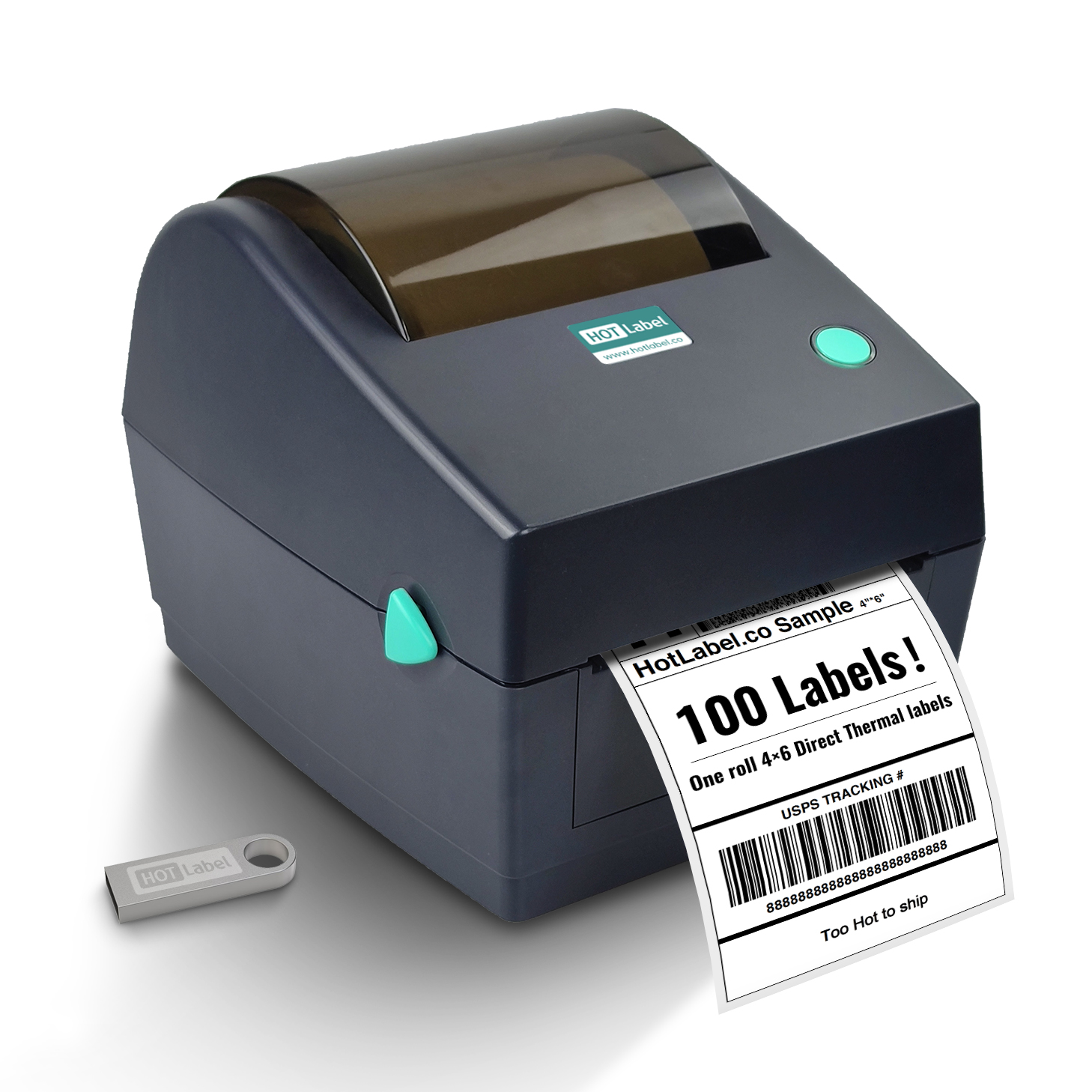
2. Are they direct-thermal labels?
HotLabel printers have no ink or ribbon. They only print on direct thermal labels (the kind that turns black when you scratch it with a fingernail). Thermal-transfer labels, inkjet sheets and plain paper stay blank.
Not sure? Scratch the label quickly with a coin — direct-thermal labels show a dark mark.
3. Does the document size match the label size?
If the document is larger than the label (for example an A4 page sent to a 4 × 6 printer), the printer may output blank labels. Set the paper size to your label size in the print dialog and use Fit to page. See Label too small, sideways or cut off.
4. Print a test page from the Diagnostic Tool (Windows)
Download the Diagnostic Tool (0.3 MB)
Extract and open Diagnostic Tool.exe (allow the .NET feature install if Windows asks), click Get Status, then Print Test Page.
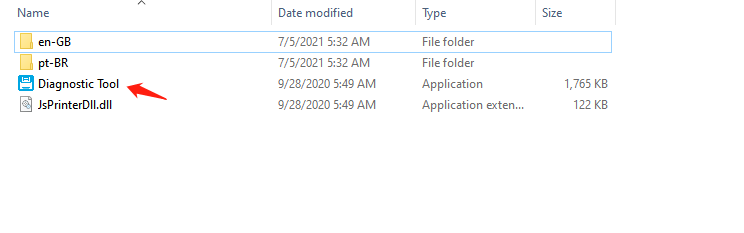
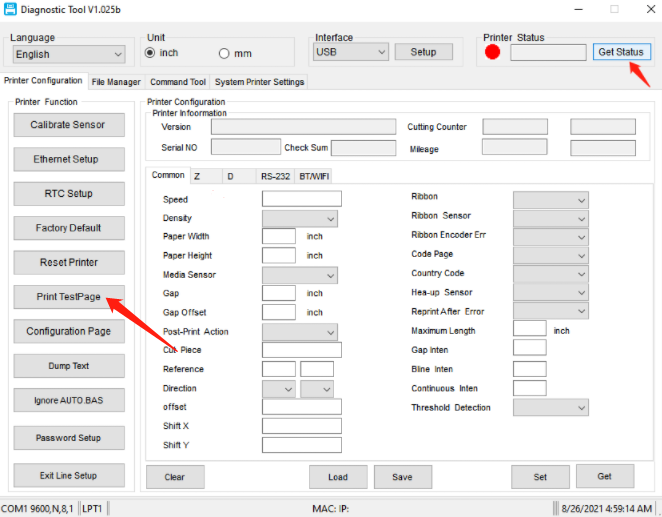
- Test page prints → the printer is fine; the problem is in the document or driver settings (steps 3 and print quality).
- Test page is blank → recheck steps 1 and 2. If the labels are definitely correct, contact us.
Contact us
Send a photo of the label roll in the printer and a scratch test to live chat or support@hotlabel.co.