
Windows: printer not detected or driver install failed
The driver wizard can't see the printer, or the printer never appears in Printers & scanners. Work through these steps in order.
Fastest route
Most Windows install problems take us 10 minutes to fix over a remote session. Chat with us during 11:30 – 21:00 Mon–Fri (Sydney time) and we'll do it with you.
Step 1 — The basics
- Printer switched on and connected with the USB cable to a port on the computer (not a hub or monitor).
- Try a different USB port and, if you have one, a different cable.
- Switch the printer off and on while the driver wizard is open, then click Refresh.
- Unplug any other label printer during installation.
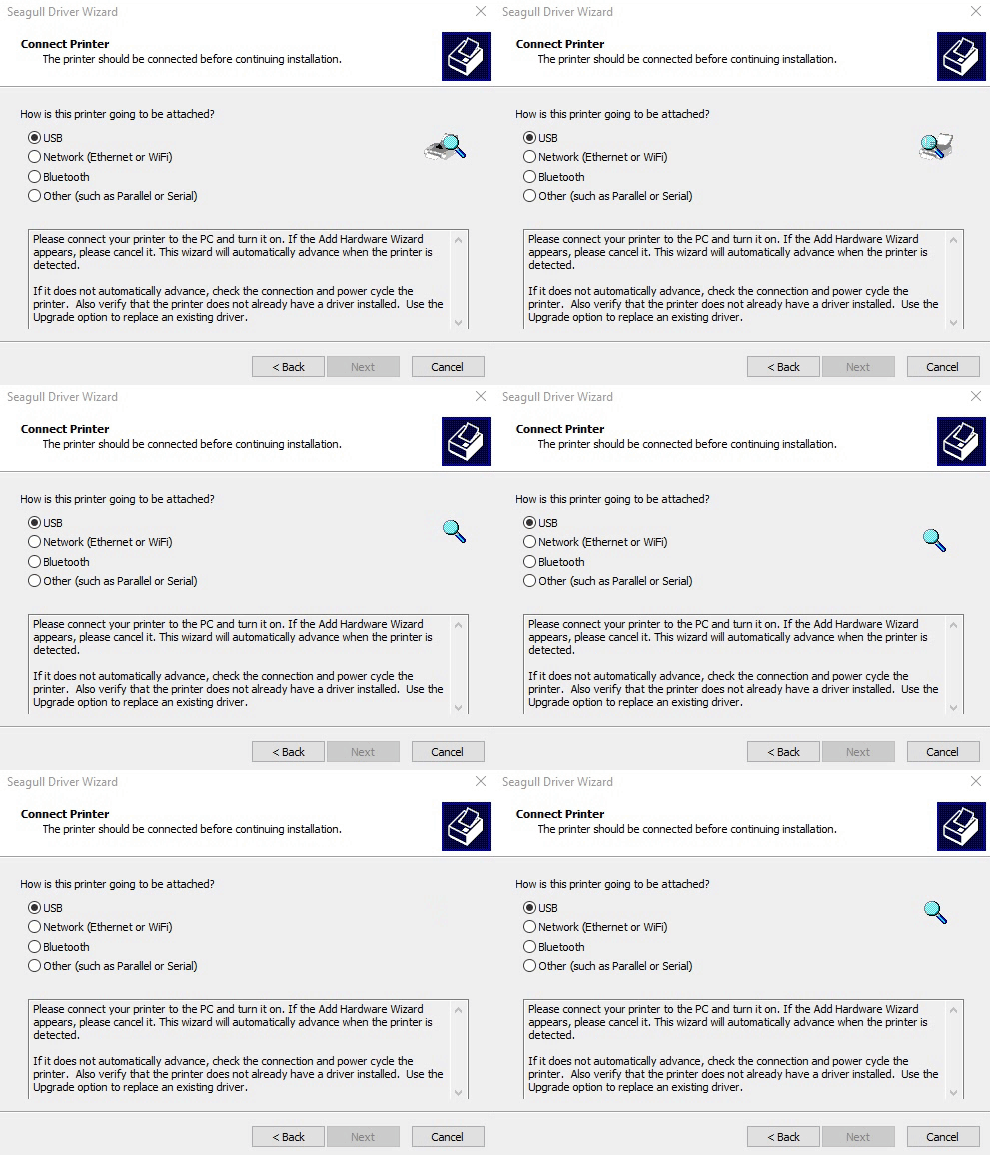
Step 2 — Is Windows seeing the printer at all?
Download the Diagnostic Tool (0.3 MB)
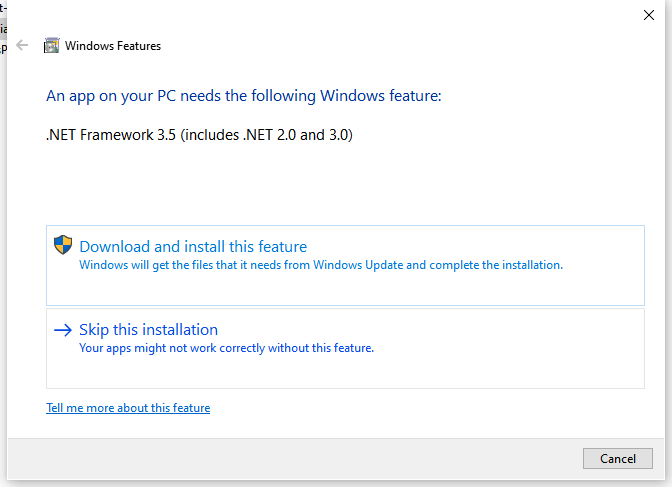
Extract and open Diagnostic Tool.exe. If Windows offers to install a .NET Framework feature, click Download and install — this update is also what the driver needs.
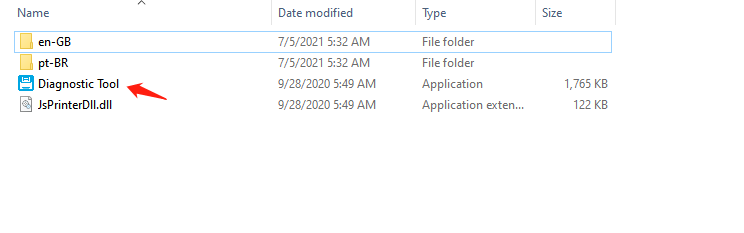
Click Get Status then Print Test Page.
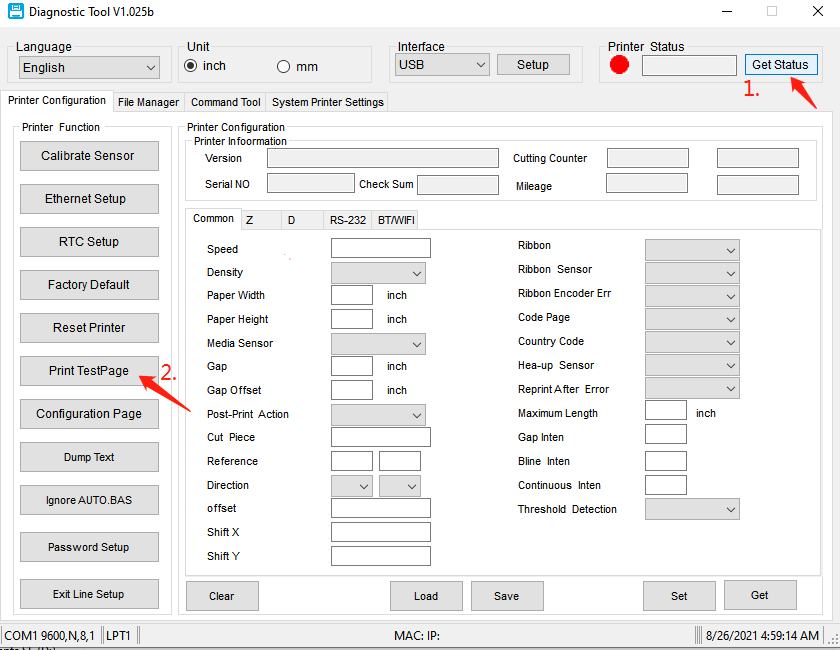
- Test page prints → the USB connection works. Continue with steps 3–4.
- Nothing / grey light → Windows isn't seeing the printer. Recheck step 1, then try another computer to rule out the cable.
Step 3 — Restart the Print Spooler
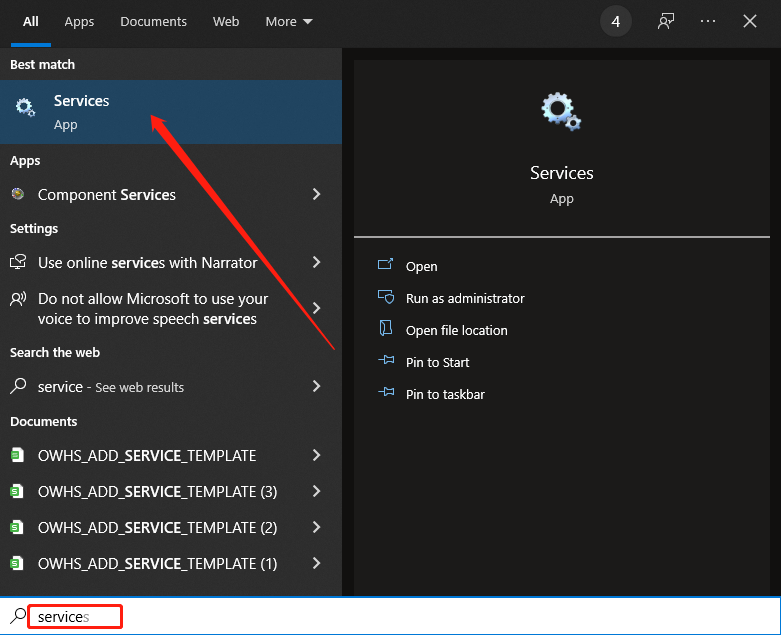
- Press Win, type Services, open it.
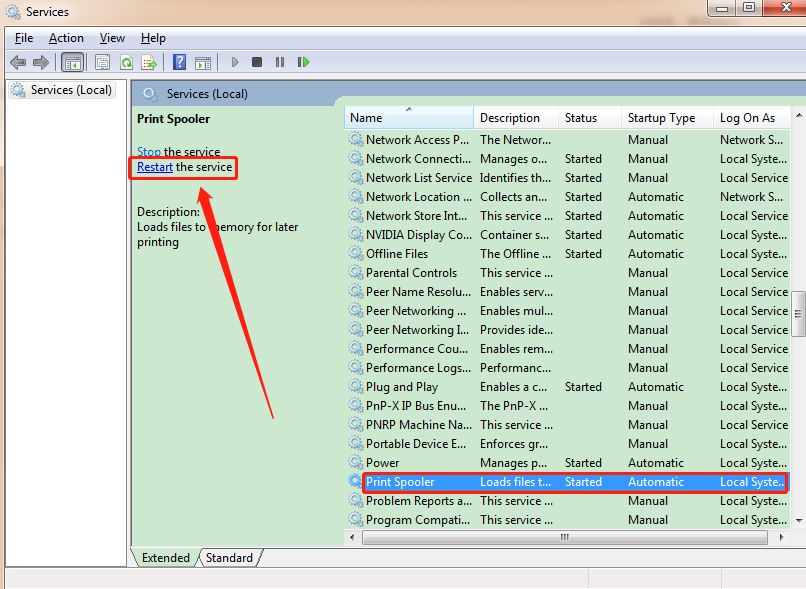
- Find Print Spooler, click it, then click Restart at the top left.
- Run the driver installer again.
Step 4 — Update the USB Printing Support driver
-
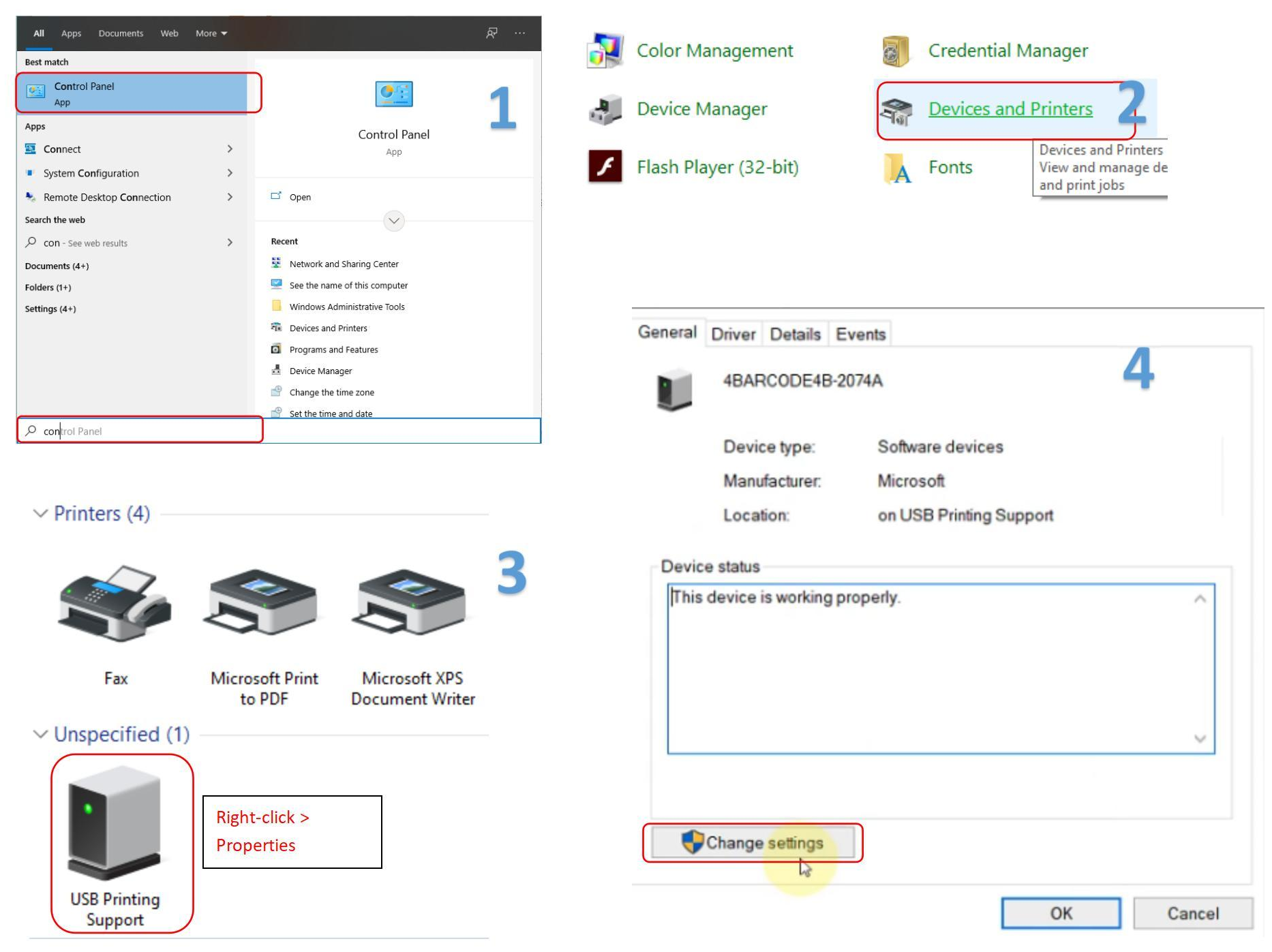
Control Panel → Devices and Printers. Right-click USB Printing Support → Properties → General → Change settings.
-
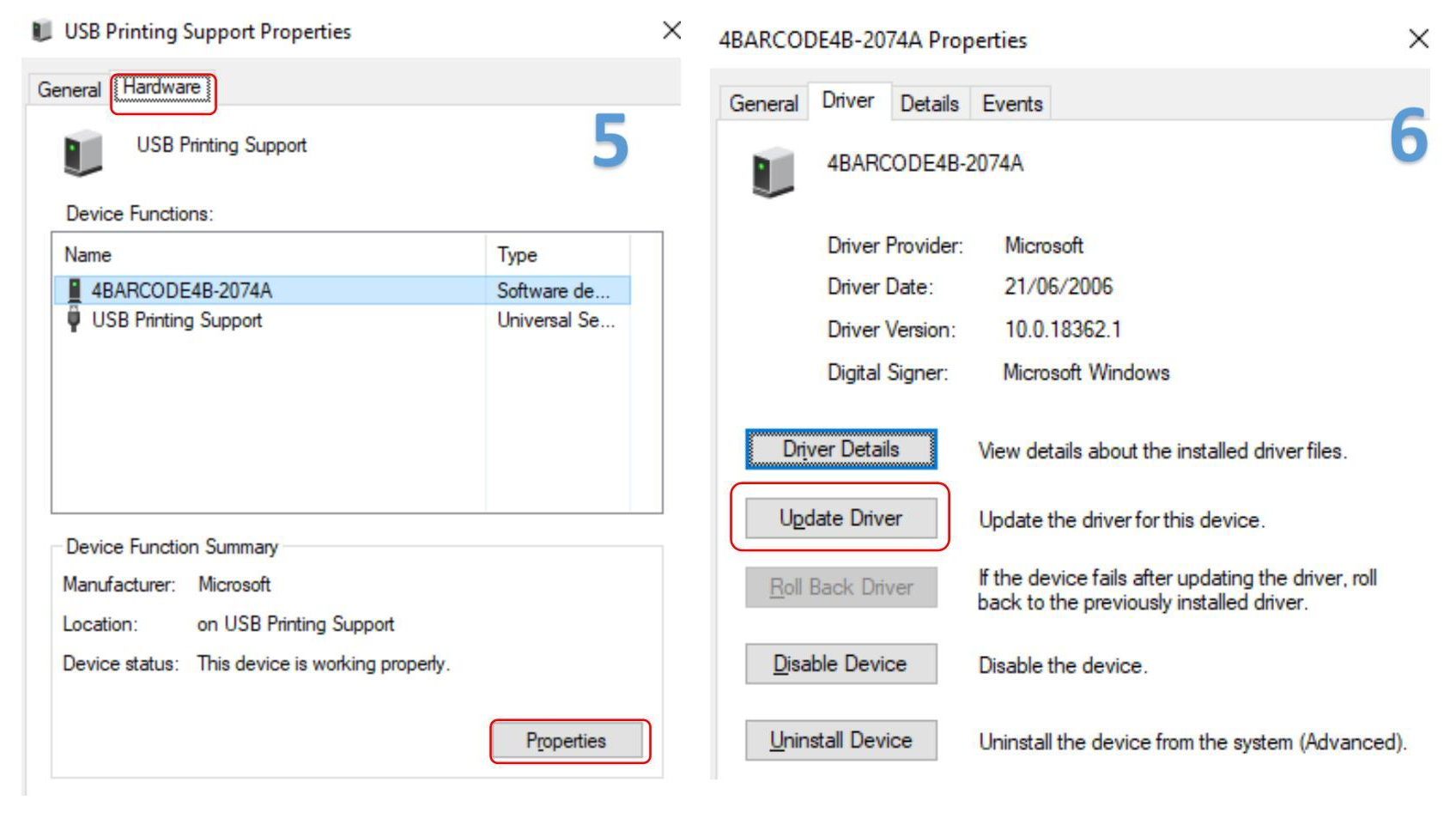
Hardware → Properties → Update Driver.
-
Choose Browse my computer for driver software and point it to the folder where the driver was installed —
C:\Program Files (x86)\HotLabelfor the HotLabel driver, orC:\4BARCODEfor the older 4BARCODE driver. (Can't find it? Run the driver installer again and note where it saves the files.)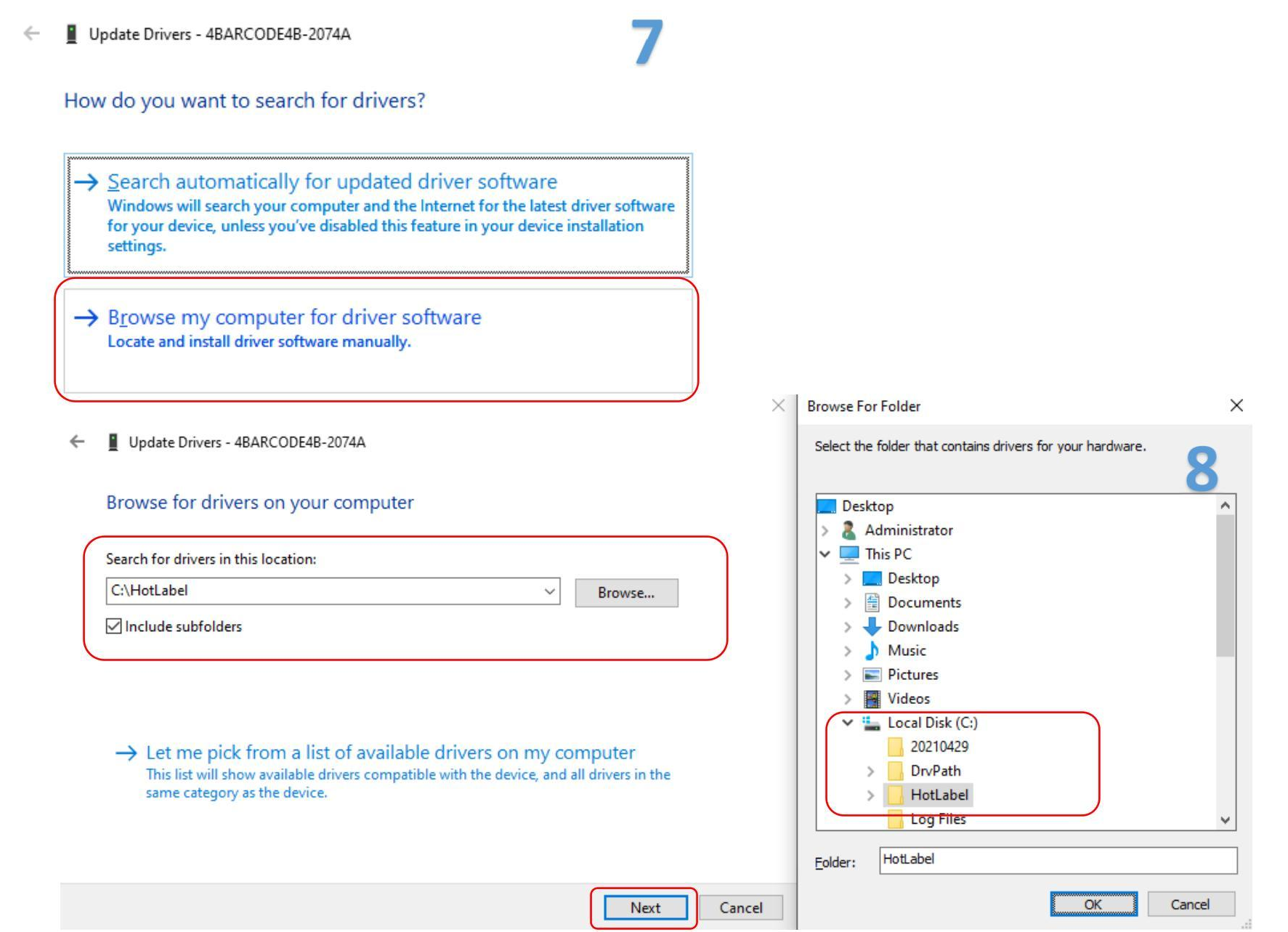
-
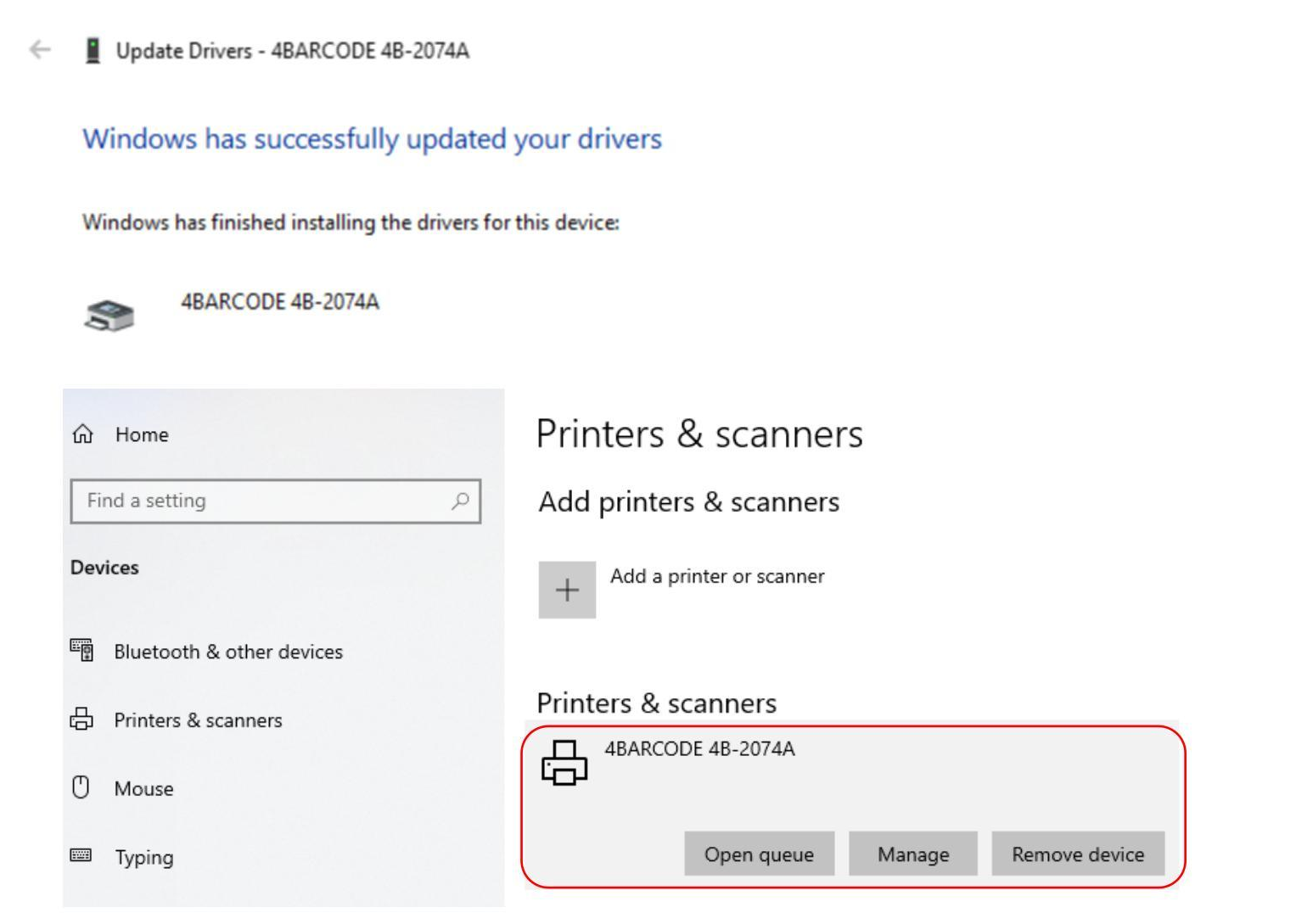
The printer now appears in Settings → Printers & scanners.
Step 5 — Add the printer manually
Use this if the driver installed but the printer is still missing from the list.
-
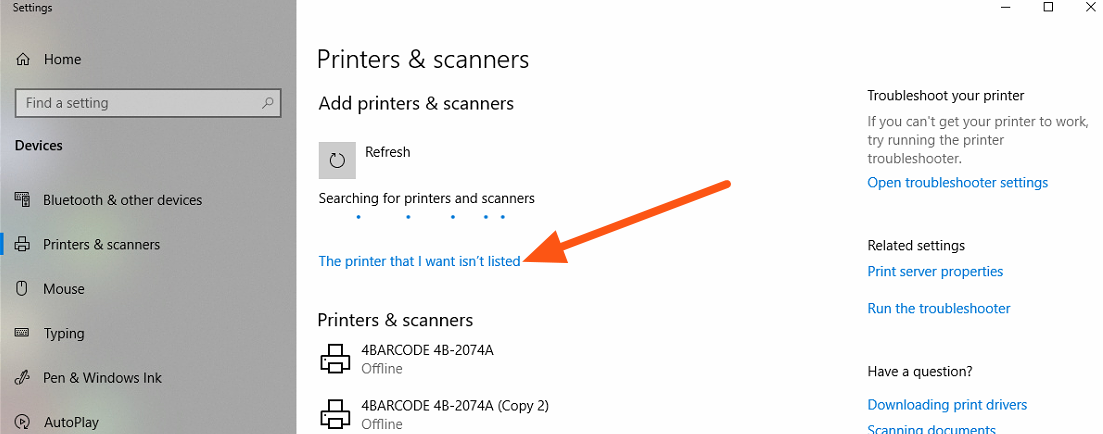
Settings → Printers & scanners → Add device. When Windows searches, click The printer that I want isn't listed.
-
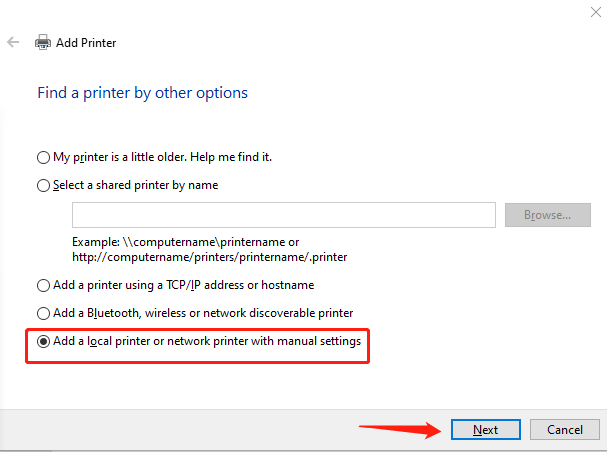
Choose Add a local printer or network printer with manual settings.
-
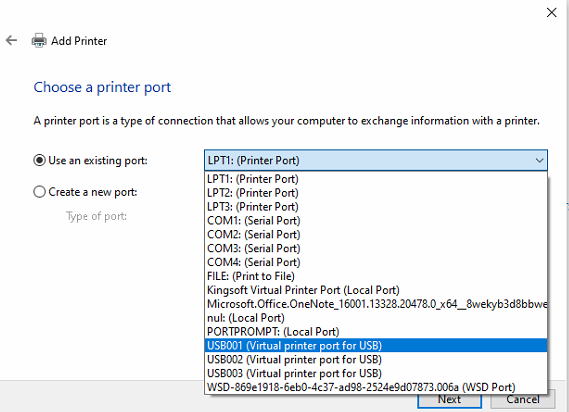
Select the USB port — USB001, USB002 or USB003 depending on which one the printer is on — and click Next.
-
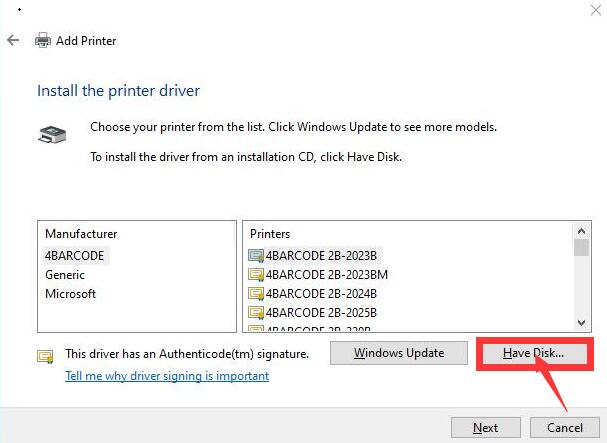
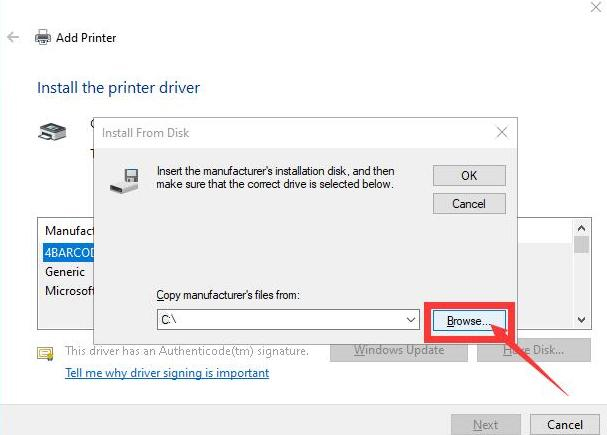
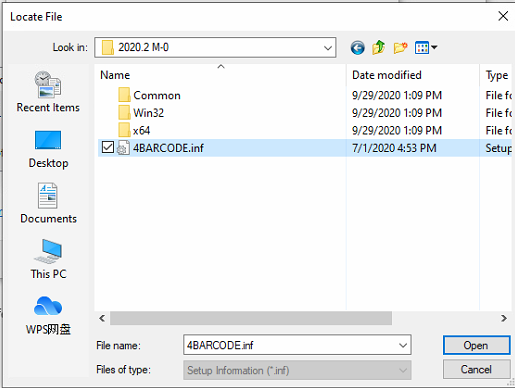
Click Have Disk… → Browse.
-
Go to the driver folder (
C:\Program Files (x86)\HotLabelorC:\4BARCODE) and open the .inf file.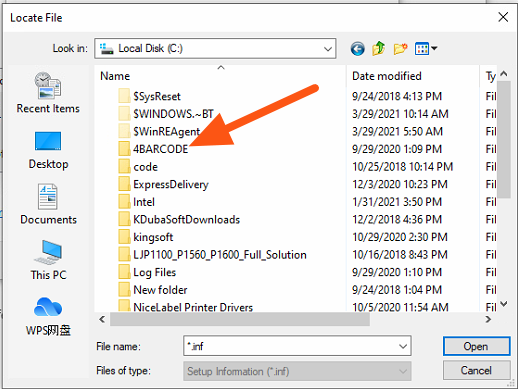
-
Pick your printer model (HotLabel HL-S8 / HL-M9 / HL-A300, or 4BARCODE 4B-2074A for older units), click Next and finish.
Success
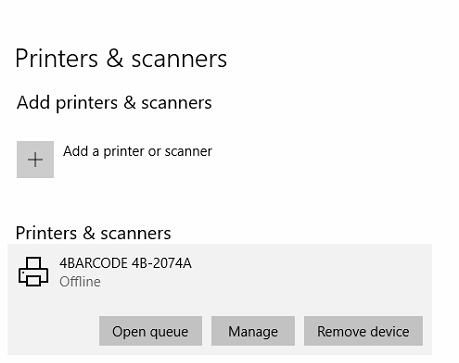
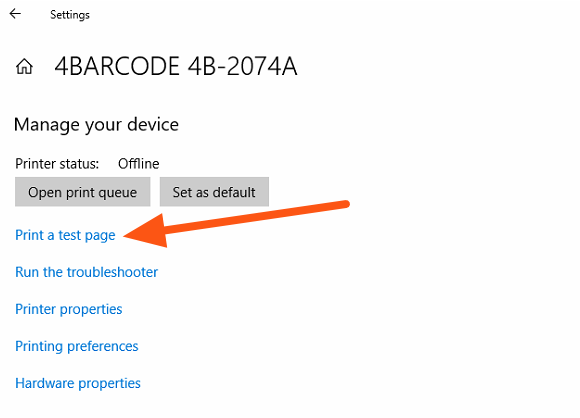
Installed correctly when the printer name appears in Printers & scanners. Click Manage → Print a test page to confirm.
Still not working?
Try the installation on another computer. If it works there, the first computer has a Windows or USB issue we can look at remotely. Contact us on live chat or support@hotlabel.co with your order number.