
Label jams
Why labels jam, how to clear one safely, and how to stop the printer feeding labels every time it starts.
Clear the jam
Switch the printer off, open the lid and gently pull the label roll back. Remove any torn label or adhesive stuck on the roller or sensor. Never pull labels forward through the print head with the lid closed.
Why it happened
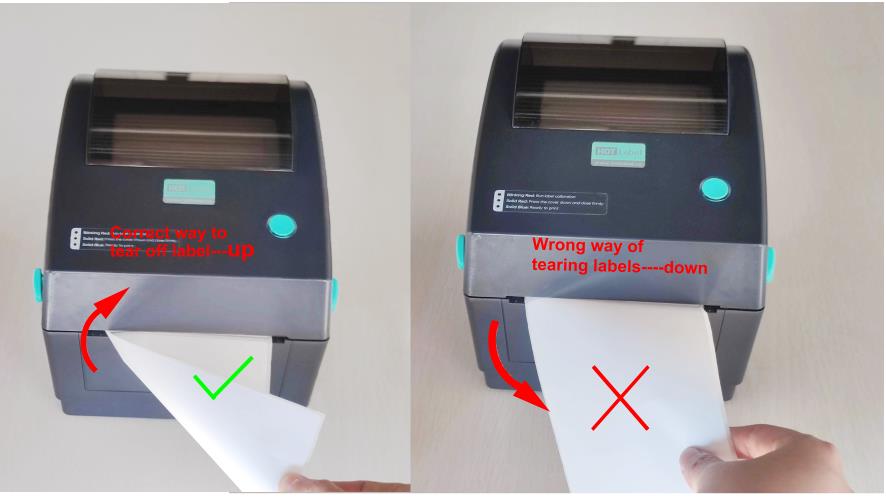
Tearing labels the wrong way
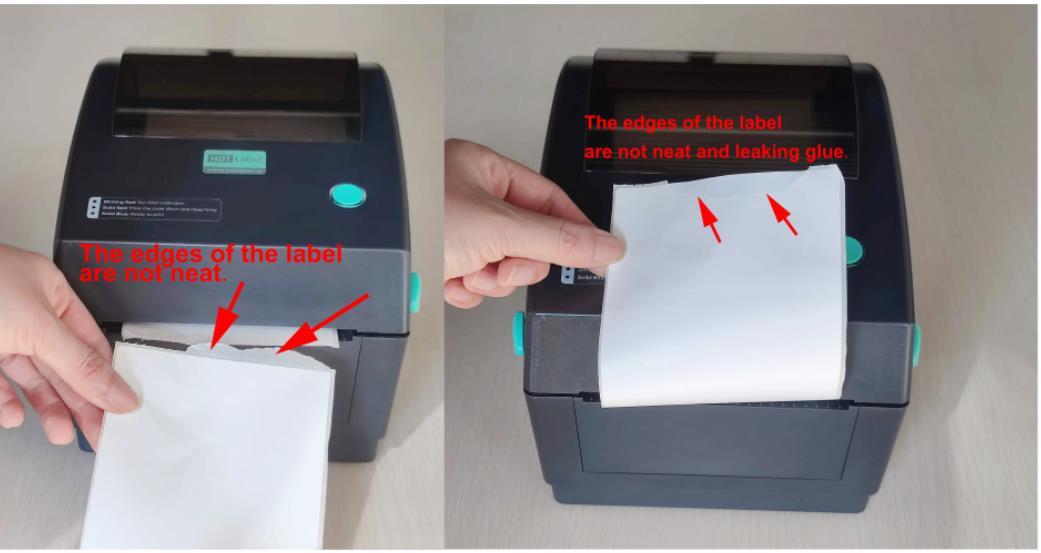
Tear labels upwards against the tear bar, not downwards. Tearing down leaves a sliver of label and adhesive on the roller.
A torn or peeled label inside the printer
A label that has separated from its backing sticks to the roller and jams the next one. Remove it and print again.
Auto-calibration on power-up
By default the printer feeds three labels and pulls them back every time it starts. On some rolls this catches and jams. You can turn it off — see stop auto-calibration.
Set the maximum label length (Windows)
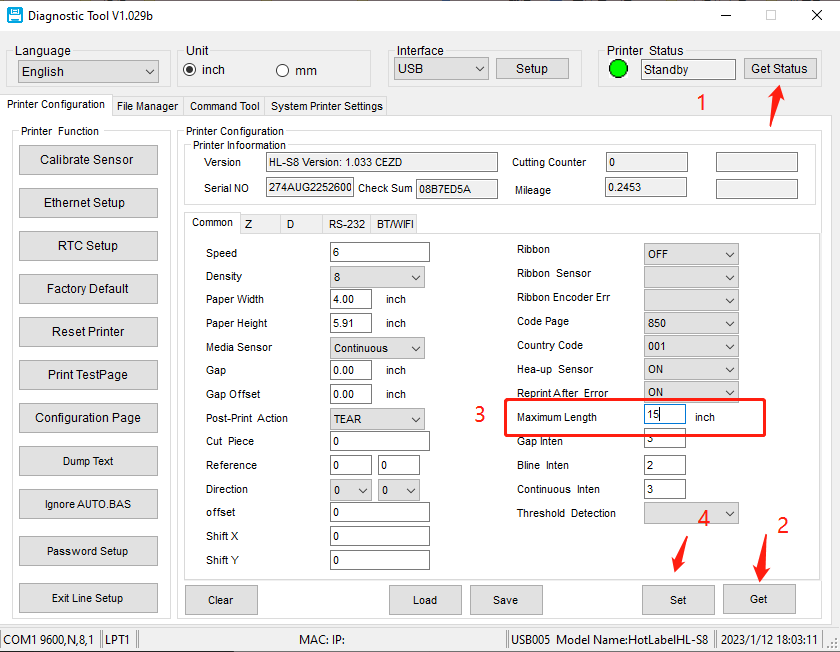
If the printer keeps feeding too far or hunting for a gap, set its maximum label length:
Download Diagnostic Tool 1.029 (0.2 MB)
- Extract the file and open the Diagnostic Tool (allow the .NET feature install if Windows asks).
- Click Get Status, then Get at the bottom right.
- Set Maximum length to 15 inch.
- Click Set, then restart the printer.
Tip
Still jamming? Send a short video of the jam to live chat or support@hotlabel.co. Our technicians reply within 24 hours.