
Stamps.com
Web version, Connect app and Pro software — how to get 4 × 6 labels from each.
Web version (recommended)
Use print.stamps.com. Choose 4 × 6 in the label size drop-down, click Print and select your HotLabel printer with paper size 4 × 6.

Stamps.com Connect app
Because of a bug in the Connect app, the printer must be named "Zebra LP2844" on your computer.
Settings → Devices → Printers & scanners → your HotLabel printer → Manage → Printer properties. Change the name to Zebra LP2844 and click OK.
System Settings → Printers & Scanners → right-click your HotLabel printer → Rename printer → Zebra LP2844 → OK.
Quit and reopen Stamps.com Connect; Zebra LP2844 now appears in its printer list.
Stamps.com Pro software
Pro needs a Zebra-compatible driver.
Download the Zebra-compatible driver (20 MB)
-
Open the file and click Install Printer Drivers.
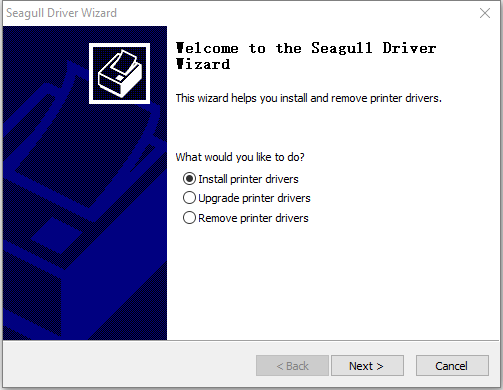
-
Select Zebra LP2844 and click Next.
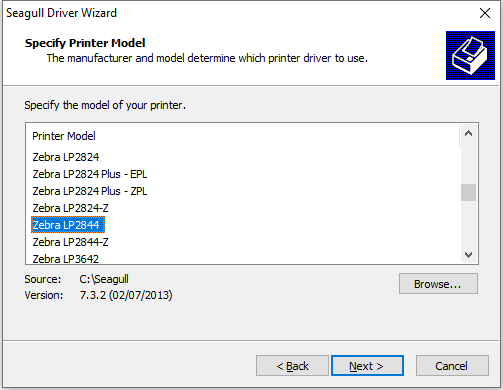
-
Pick the USB port the printer is on (USB001 in the example) and finish.
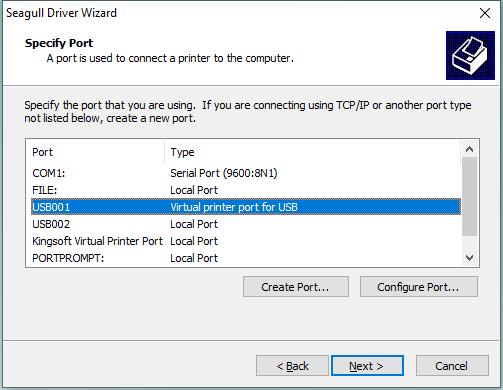
-
Settings → Printers & scanners → Manage → Print a test page to confirm.
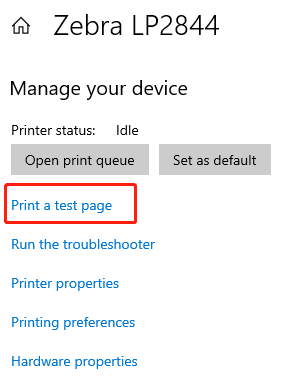
-
In Stamps.com Pro, Tools → Configure Printer. In the Packages tab choose Zebra / Eltron Type – Standard 4 × 6 label – roll, pick Zebra 2844 as the printer and click Print Sample.