
Print on single (loose) labels
Feed individual labels one at a time by turning off the printer's automatic feed motion.
Advanced
This changes internal printer settings. Only do it if you are comfortable with printers, and note the original values so you can restore them. Windows only.
By default the printer moves the label when it powers on and when the lid closes. For single labels, turn both motions off.
1. Open the Diagnostic Tool
Download the Diagnostic Tool (0.3 MB)
Extract and open Diagnostic Tool.exe (it is also on your USB stick). Allow the .NET feature install if Windows asks.
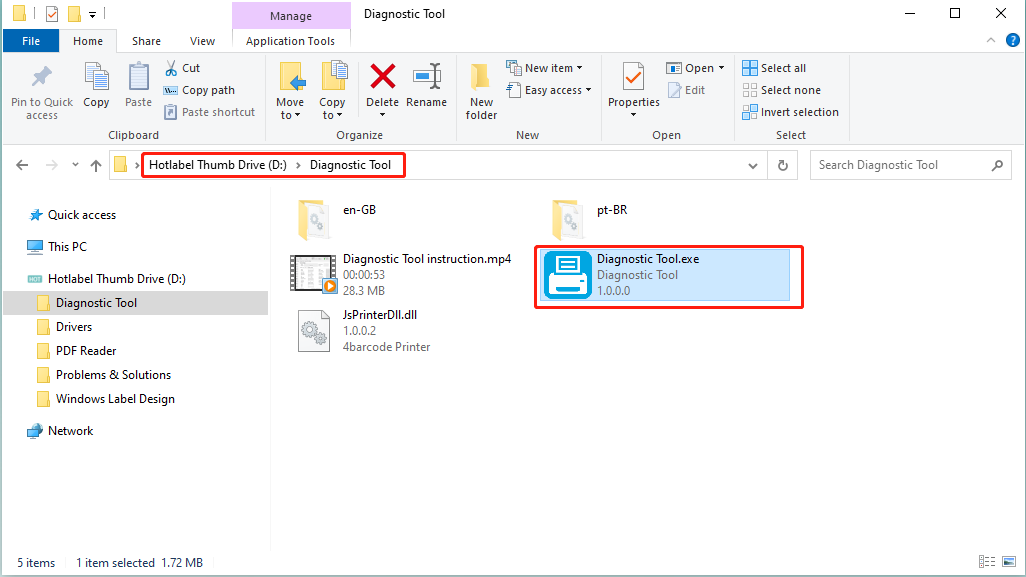
2. Change the settings
-
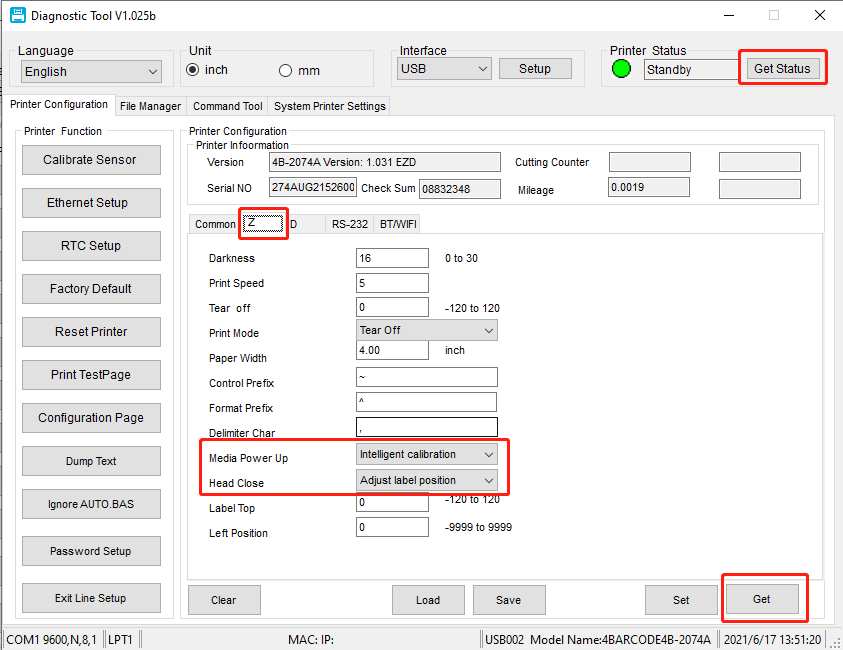
Click Get Status, then Z → Get to read the current parameters.
-
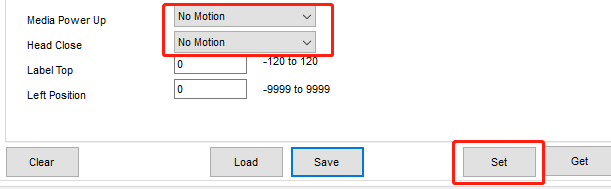
Set Media Power Up to No motion.
-
Set Head Close to No motion.
-
Click Set, then restart the printer.
3. Load a single label
Place one label thermal side up, with its front edge sitting on top of the roller, close the lid and click Print.
Going back to rolls
Set Media Power Up and Head Close back to their original values, or reset the printer to factory defaults.