
Home › Tips & settings
Print photos, logos and screenshots
Thermal printers can print images — use Paint or Preview and set dithering so they don't come out as black blobs.
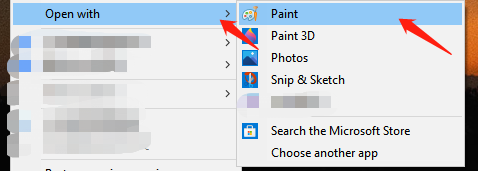
Don't use the Windows Photos app — it doesn't support thermal printers (error 0x80040004). Use Paint.
-
Right-click the image → Open with → Paint.
-
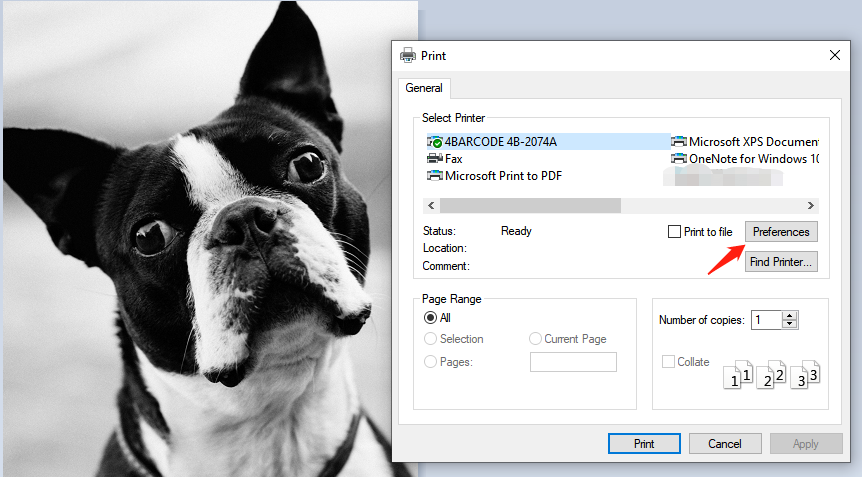
Press Ctrl+P.
-
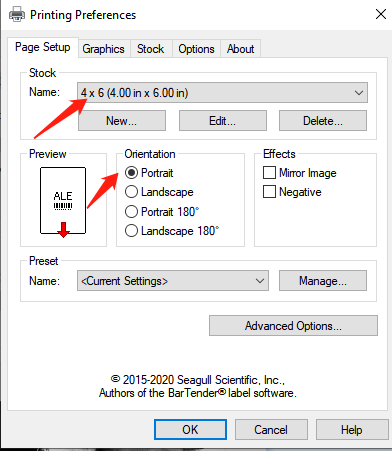
Select your HotLabel printer and click Preferences. Choose the paper size and orientation.
-
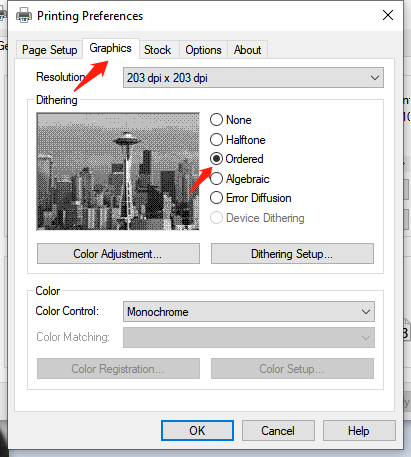
In the Graphics tab, set Dithering to Ordered or Halftone. This turns greys into fine dot patterns instead of solid black.
-
OK → Print.
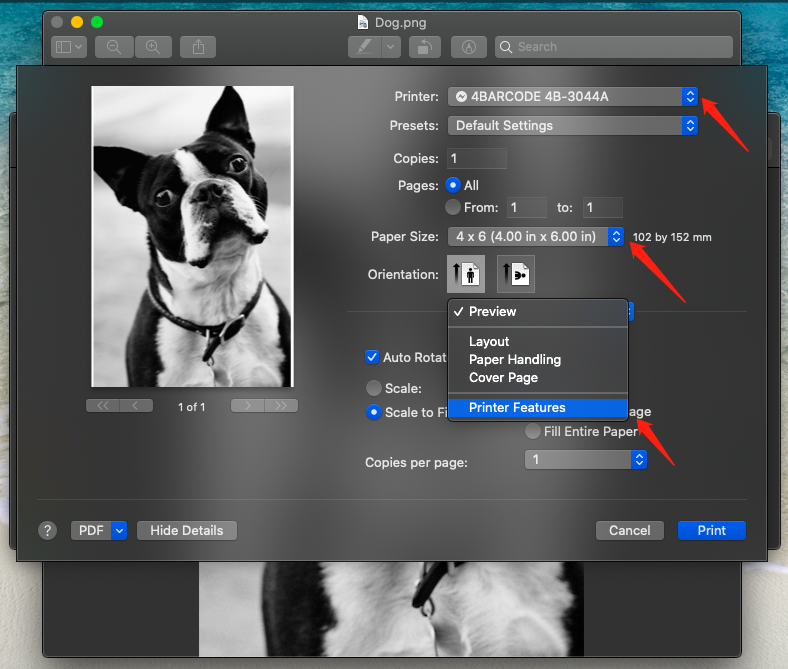
- Open the image in Preview and press ⌘+P.
- Make sure your HotLabel printer is selected and choose the paper size (e.g. 4 × 6 in).
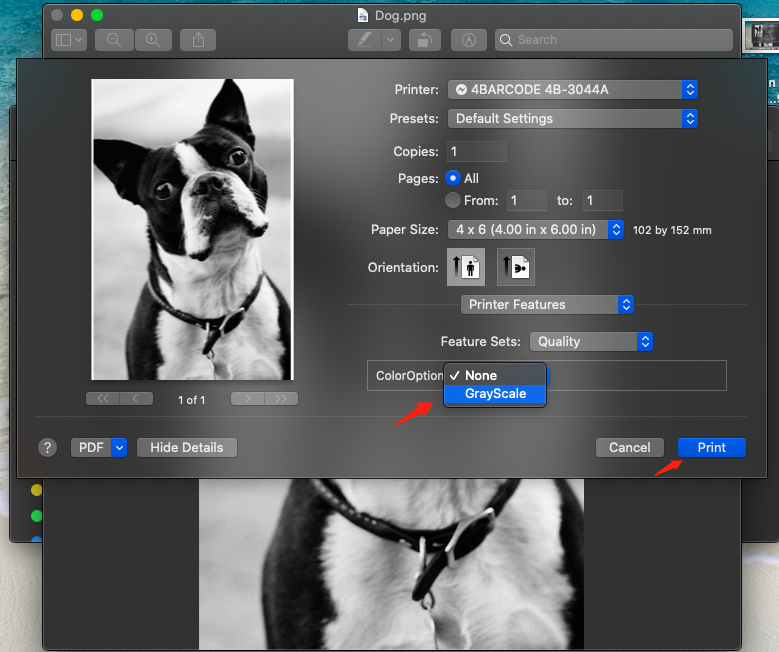
- In the options drop-down choose Printer Features, then set Color Option → Grayscale.
- Print.
Best results
High-contrast images print best. Lighten dark photos first, and prefer the 300 DPI models (M9HD, A300) for fine detail.
Still need help?Live chat 11:30 – 21:00 Mon–Fri (Sydney time) · Email replies within 24 hours · Phone 0478 886 607