
Home › Tips & settings
Crop an A4 / Letter label to 4 × 6
When a carrier only gives you a full-page PDF, crop it in 30 seconds online, in Preview (Mac) or in Acrobat Reader (Windows).
Option 1 — Online (any computer)
-
Open pdfresizer.com/crop, choose the label PDF and click Upload files!
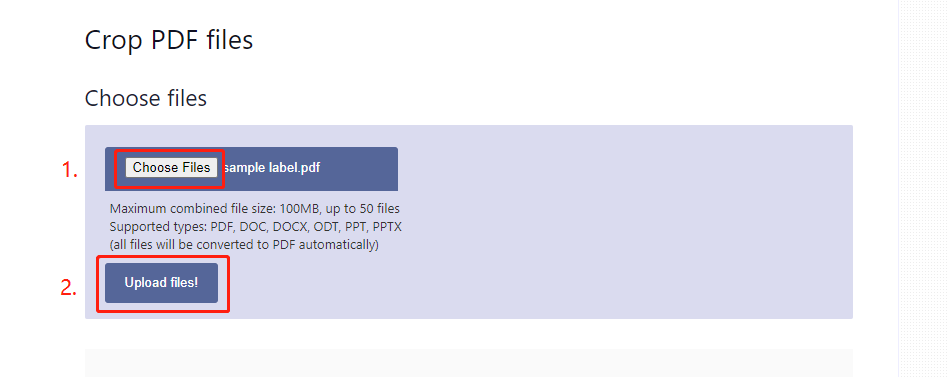
-
Click AutoCrop, then Crop it.
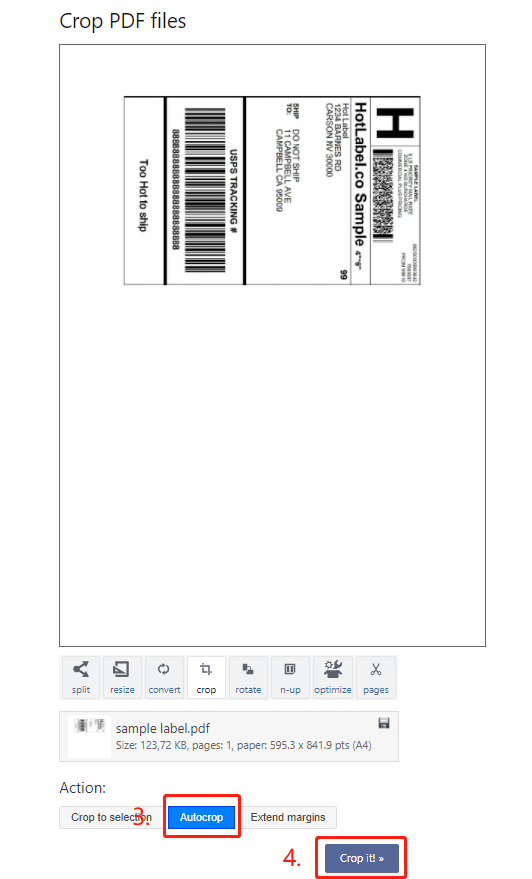
-
Click Download.
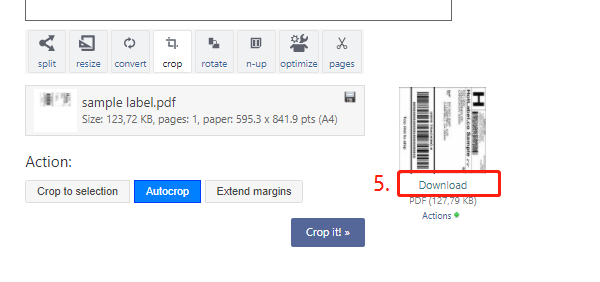
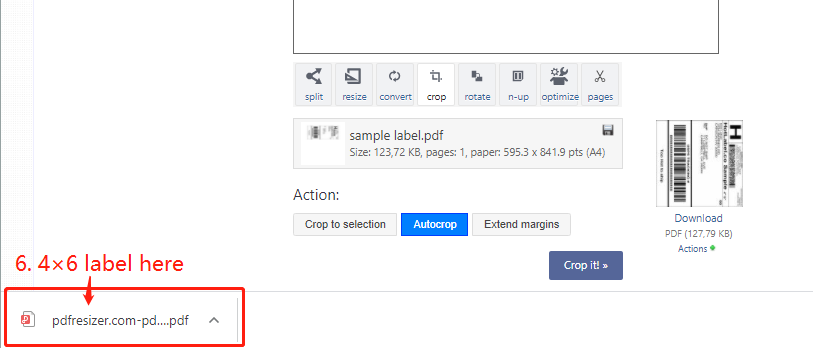
-
Open the downloaded PDF in your browser and print.
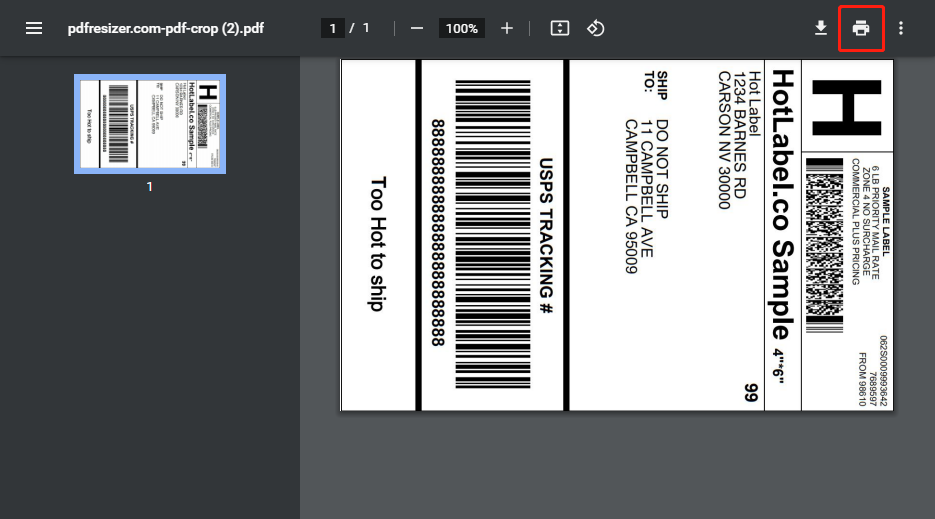
-
Paper size 4 × 6, scale Fit to printable area.
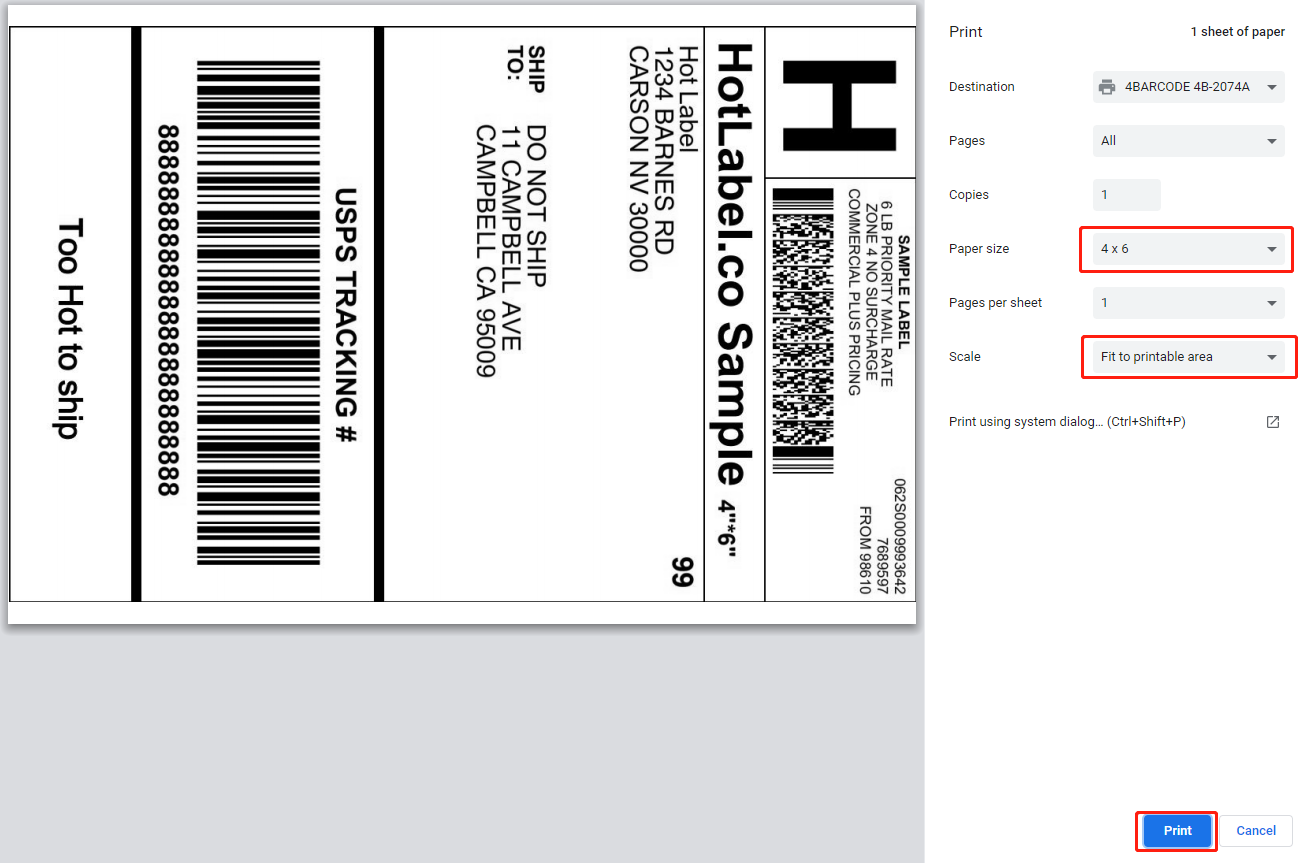
Option 2 — Mac Preview
- Open the PDF in Preview.
- Click the Markup (pencil) icon, then the Rectangular Selection tool.
- Drag a box around the label and choose Tools → Crop (⌘+K).
- Print with paper size 4 × 6 in.
Option 3 — Adobe Acrobat Reader (Windows)
- Open the PDF in Acrobat Reader (free download).
-
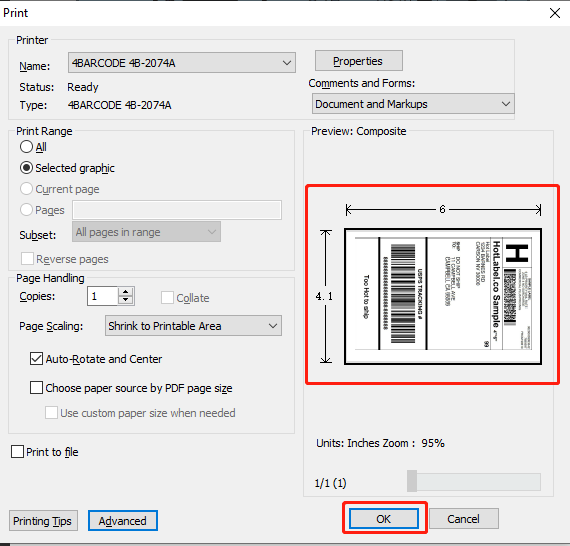
Edit → Take a Snapshot (older versions: Tools → Select & Zoom → Snapshot Tool).
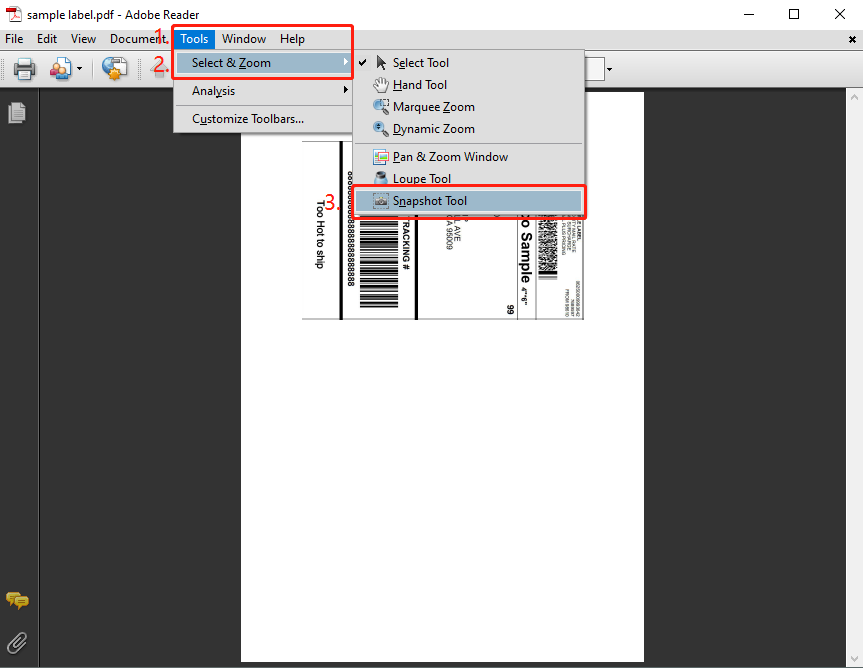
-
Drag around the label. The selection turns blue.
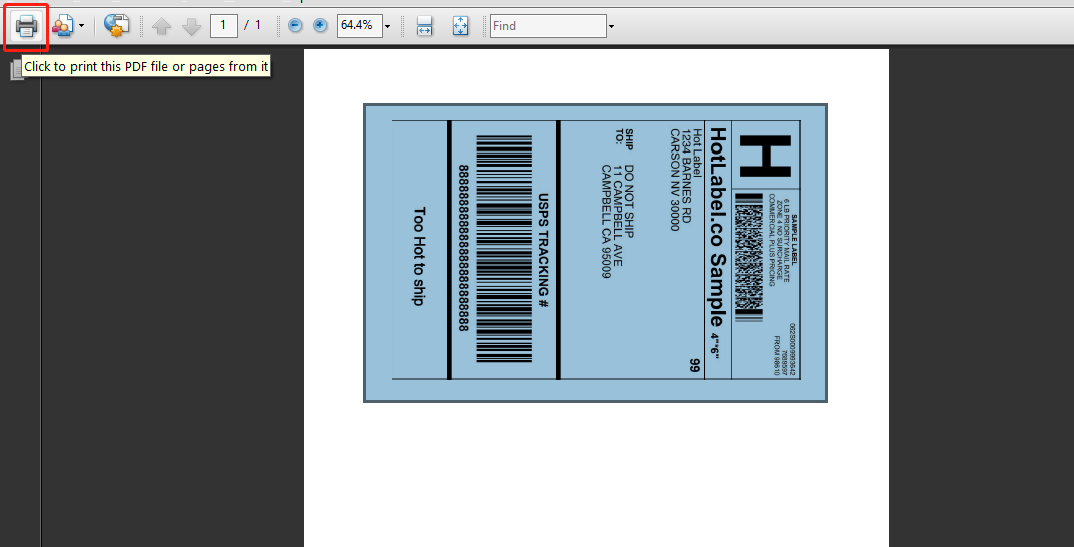
-
Click the printer icon: the snapshot is printed. Set paper size 4 × 6.
Tip
Cropping is a workaround. Where possible, switch your platform to 4 × 6 labels so no cropping is needed — platform guides.
Still need help?Live chat 11:30 – 21:00 Mon–Fri (Sydney time) · Email replies within 24 hours · Phone 0478 886 607