
Skips labels or prints the same label again
When the printer hasn't learned your label size it can skip a blank, split a label in two, or reprint the same label with a blinking red light. Calibration fixes it.
The printer measures the gap between labels to know where each one ends. If it gets that wrong you'll see labels skipped, one label spread over two, or the same label printed again and again, usually with a blinking red light.
1. Clear the print queue
- Switch the printer off with the switch at the back.
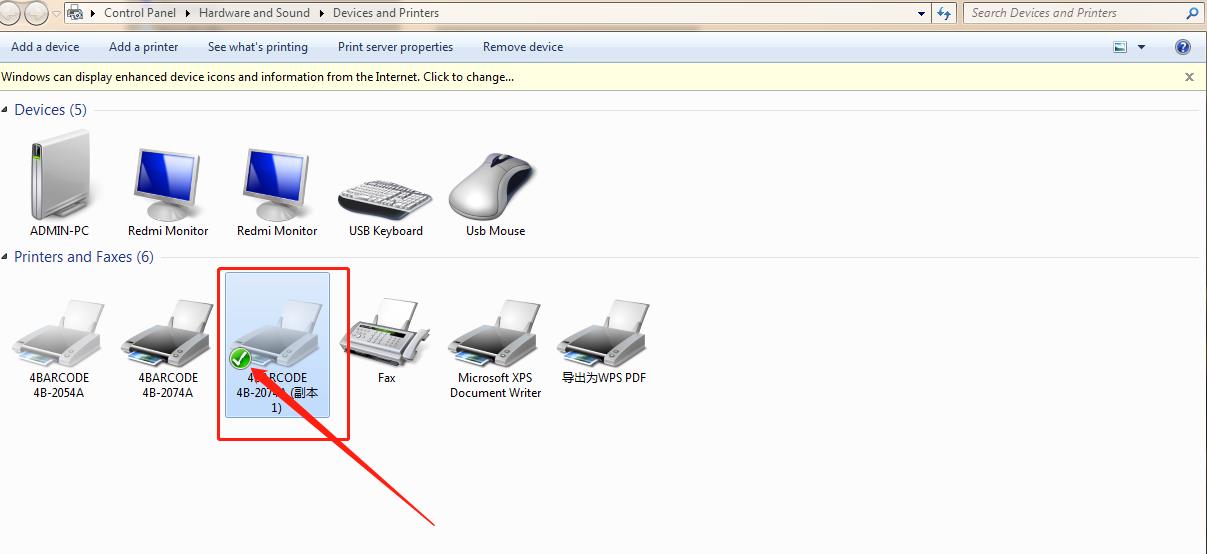
- On your computer, open the printer queue (Windows: Settings → Printers & scanners → your printer → Open print queue; Mac: Printers & Scanners → your printer → Open Print Queue) and delete all pending jobs.
2. Check the labels
Make sure only one roll is loaded and the labels feed straight through the green guides. Remove any half-peeled or torn label.
3. Calibrate
Switch the printer on, wait for the light, then press and hold the round button on top until you hear one beep, and let go. The printer feeds a few labels back and forth and stops at the tear-off point. When the light is blue, print again.
Calibration can also be triggered during power-on — see Reset & calibrate.
4. Still splitting across labels?
Check the document size matches the label size and that scale is Fit to page: Label too small, sideways or cut off.
Tip
Using unusual labels (very small gaps, black-mark or continuous stock)? Tell us the exact label size on live chat and we'll set the printer parameters with you.